

If you’re trying to import contacts in Zoho Bigin for the first time, you might think it’s as simple as uploading a file and clicking “finish.” But in reality, this is where many small businesses run into issues such as missing data, unmapped fields, duplicate contacts, or even broken automations.
The truth is, importing contacts into Zoho Bigin the right way starts before you ever upload your file. From setting up the correct fields to ensuring your data is structured properly, every step plays a role in whether your import is clean, or a complete mess.
In this guide, we’ll walk you through the exact step-by-step process to import contacts in Zoho Bigin correctly, based on a real workflow. You’ll learn how to prepare your data, map fields properly, avoid common mistakes, and ensure your contacts are ready to support your sales and marketing efforts from day one.
And if you’ve already tried importing contacts but something didn’t quite work as expected, don’t worry—we’ll also highlight what could be going wrong and how to fix it.
Before you import contacts in Zoho Bigin, there’s one thing most people overlook. Your setup determines whether your import is clean or chaotic. A lot of businesses upload their contact list and end up with missing fields, misaligned data, or contacts that don’t behave correctly inside their pipeline.
Getting a few key things right up front makes the process smoother and saves you from fixing avoidable mistakes later.
Before you go ahead and import your contacts, make sure these key pieces are properly set up.
1. Prepare Your Contact File (CSV or Excel)
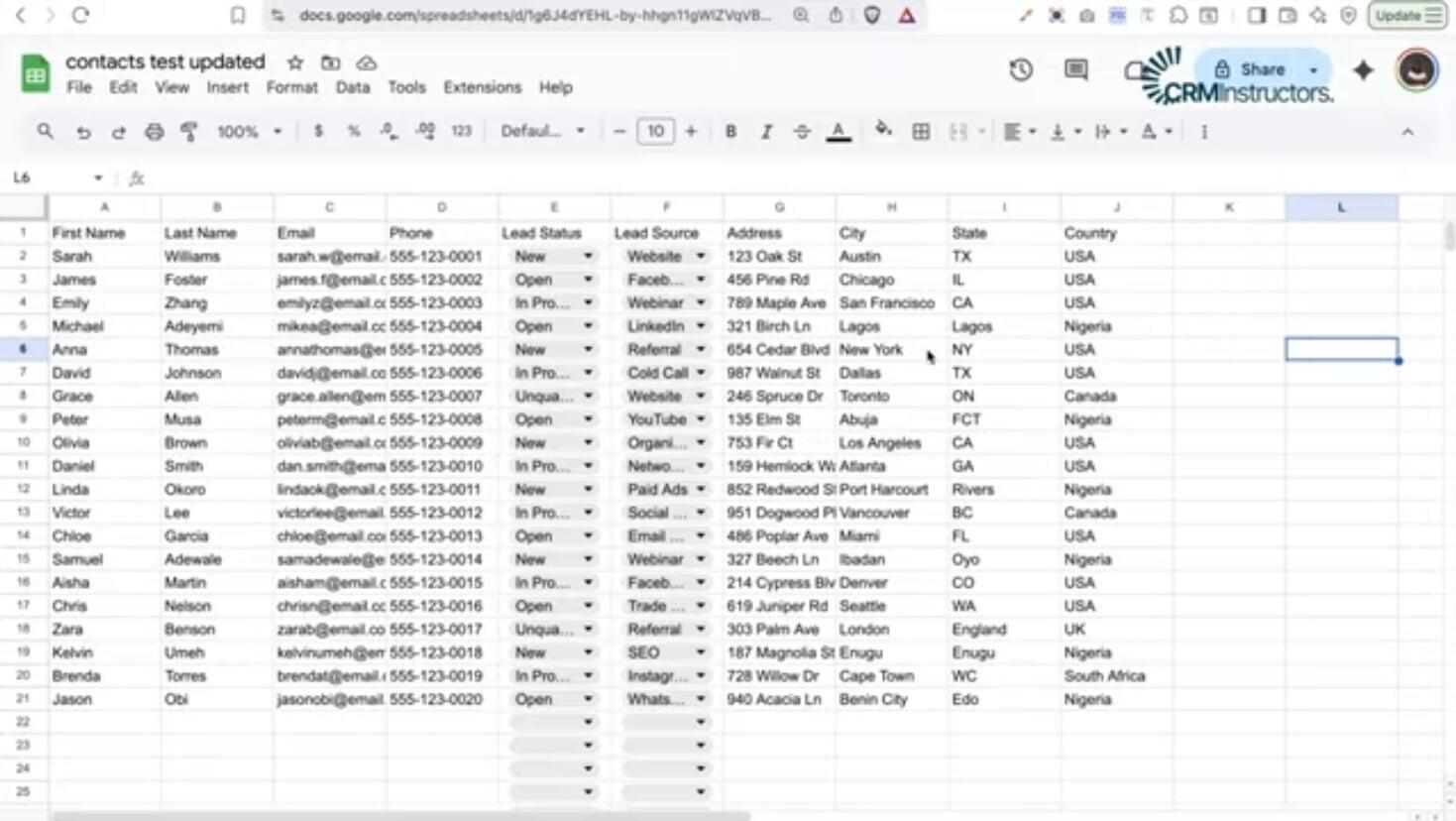
The first step to successfully import contacts in Zoho Bigin is making sure your file is properly structured. Zoho Bigin supports both CSV and Excel formats, but the way your data is arranged matters just as much as the format itself.
Each column in your file should represent a field in Zoho Bigin, and each row should represent a single contact. This means your data needs to be clean, organised, and consistent before you upload it.
For example, your file should include columns like:
First Name
Last Name
Email
Lead Source
Address
You can also include any other information you plan to import. Keeping your file structured this way makes it easier to map fields correctly during the import process and reduces the chances of errors.
2. Ensure All Fields Exist in Zoho Bigin First
One of the biggest mistakes we see is importing contacts before setting up the necessary fields in Zoho Bigin. The system doesn’t create structure for you during import; instead, it only works with what already exists.
So if your file includes fields like Lead Status, Lead Source, or Address, those fields need to be created in advance. Otherwise, Zoho Bigin has nowhere to place that data.
For example, if your file has “Lead Source” but it hasn’t been set up in Bigin, that information won’t map correctly. In most cases, it either gets skipped or ends up in the wrong place, which affects how your contacts behave later in your pipeline.
3. Create Custom Fields (Lead Status, Lead Source)
Once you’ve confirmed which fields are missing, the next step is to create them inside Zoho Bigin so your data has the right structure to land in.
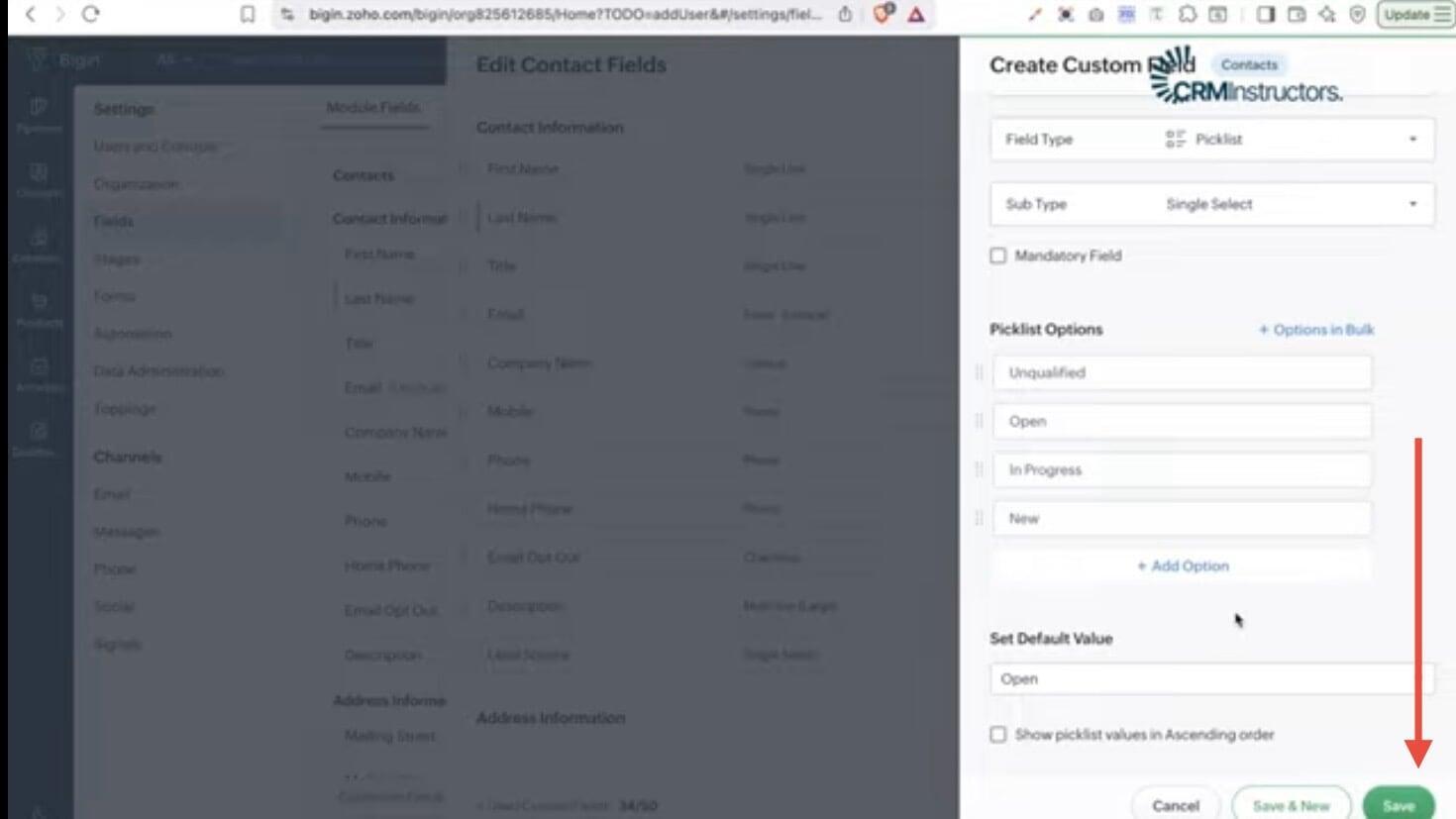
For fields like Lead Status or Lead Source, you’ll typically use a picklist with single select options. This allows you to control the values that can be assigned to each contact and keeps your data consistent across the system.
Instead of adding options one by one, you can:
Bulk add them by pasting your list of values directly into the field setup. This saves time and ensures everything matches your import file exactly.
Set a default value if needed. For example, setting Lead Status as “Open” so any contact without a defined value still fits into your pipeline.
CRMInstructor tip: Always standardise your pick-list values before importing. Even small differences in naming can create inconsistencies that affect reporting, segmentation, and automation later on.
If you’re looking for how to import contacts in Zoho Bigin step by step, the process itself is straightforward once everything is set up correctly. The key is knowing what each stage requires so you don’t run into mapping issues, duplicates, or incomplete records.
In this section, we’ll walk through the exact steps to get your contacts into Zoho Bigin smoothly and without errors.
Step 1: Go to Contacts and Click Import
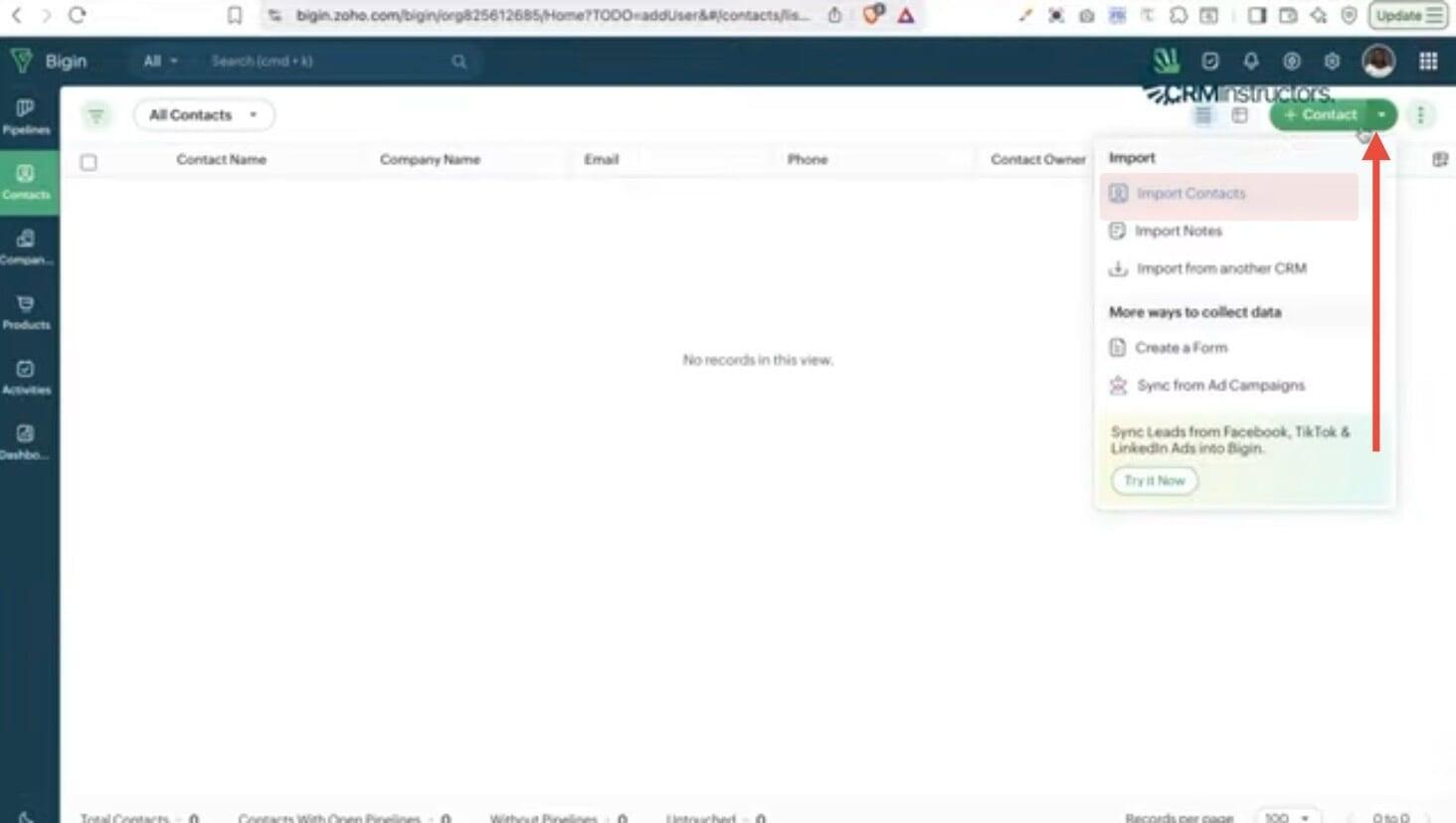
Start by navigating to the Contacts section inside Zoho Bigin. This is where all your contact records live and where you’ll begin the import process.
You’ll notice two options here:
One option allows you to create a contact manually using a simple form, which works if you’re adding one or two entries.
Another option is the import feature, which is designed for bringing in multiple contacts at once using a file.
Since you’re working with a list, the import option is the right path. It takes you to the upload page where you can bring in your file and begin the process.
Step 2: Upload Your File (CSV or Excel)
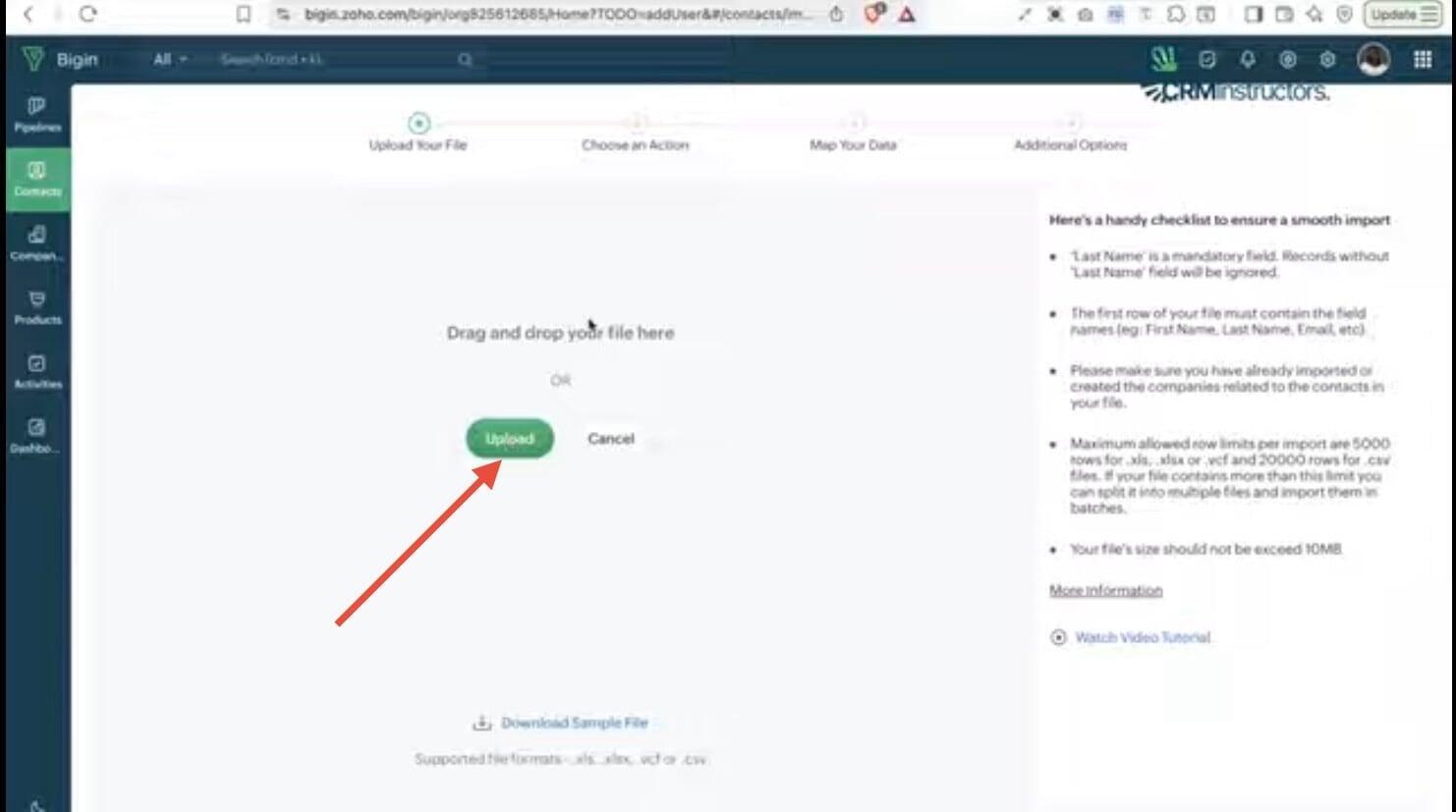
Once you click on import, you’ll be taken to the upload page where you can add your file. Zoho Bigin allows you to either drag and drop your file directly into the upload area or select it manually from your system.
After uploading, the system will display a preview of your data so you can confirm that everything has been read correctly. This is a good point to quickly scan your columns and make sure the structure looks as expected before moving forward.
Step 3: Choose Import Type (New vs Update)
At this stage, you’re deciding how Zoho Bigin should treat the data you’re about to import. This part matters more than most people think because it affects how your existing records are handled.
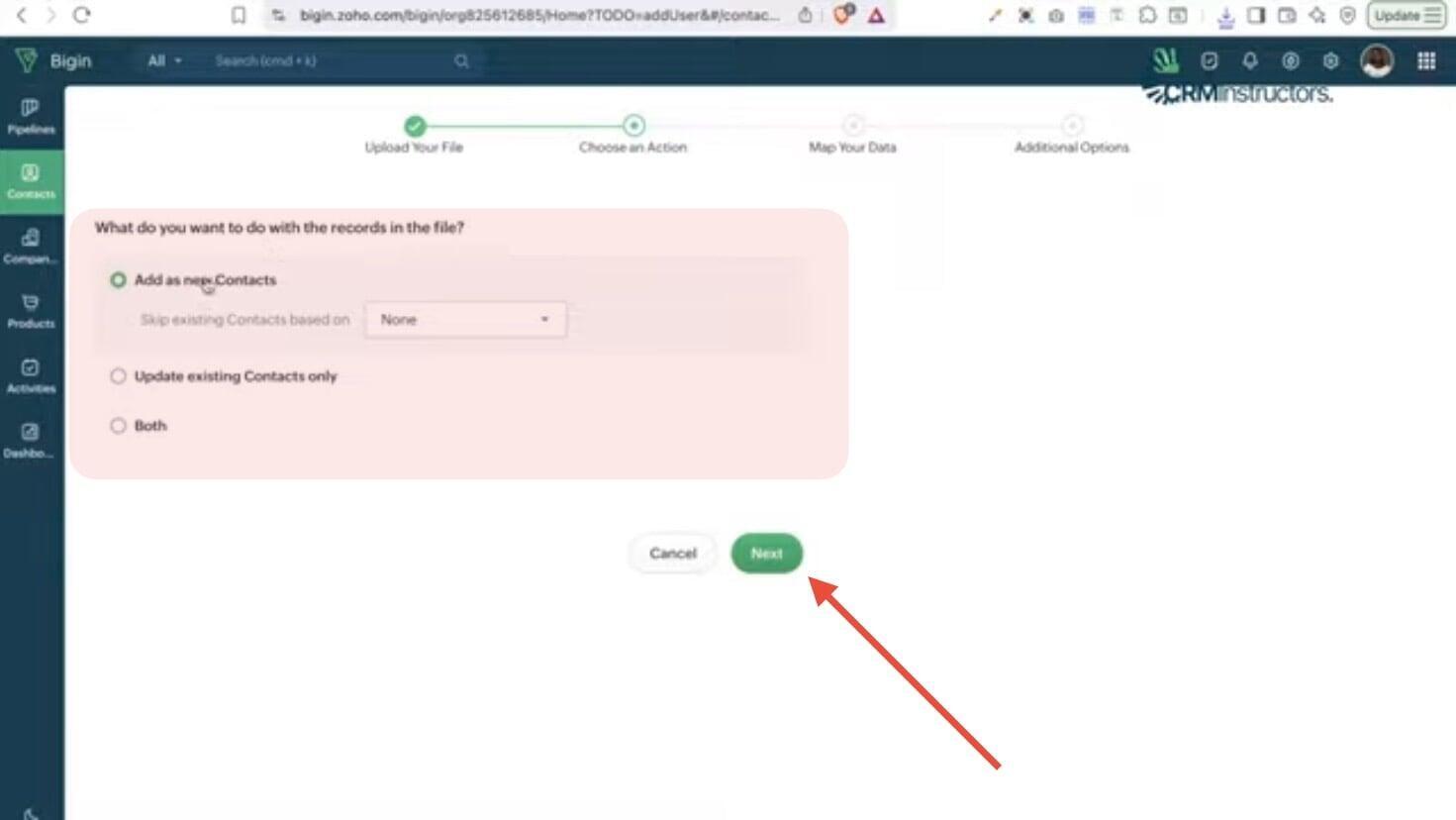
You can choose to:
Add only new contacts
Update existing ones
Combine both actions in a single import.
The right choice depends on whether your CRM already has data or you’re starting fresh.
Zoho Bigin will then ask how to identify duplicates, and this is where email becomes important. Since it’s unique for most contacts, you can use it to prevent duplicates. For example, skipping any record that already exists based on email.
Step 4: Map Your Fields Correctly
This is the stage where your import either comes together cleanly or creates problems later. Zoho Bigin will automatically match some of your columns to existing fields, but it doesn’t always get everything right.
Take a moment to go through each mapping and confirm that the data is aligned properly. Simple fields like First Name usually match correctly, but others like Address or custom fields often need manual adjustment.
If you see any unmapped fields, don’t ignore them. Assign them to the right field or create a new one so no data is lost. For example, make sure First Name maps to First Name and Address maps to Address.
CRMInstructor tip: Auto-mapping is helpful, but it’s not perfect. A quick review here prevents issues that are much harder to fix after the import.
Step 5: Assign Owners, Add Tags & Enable Automation
As you move closer to completing the import contact in Zoho Bigin process, this step defines how your contacts will be managed once they enter your system. It’s not just about bringing data in, it’s about making sure it’s usable immediately.
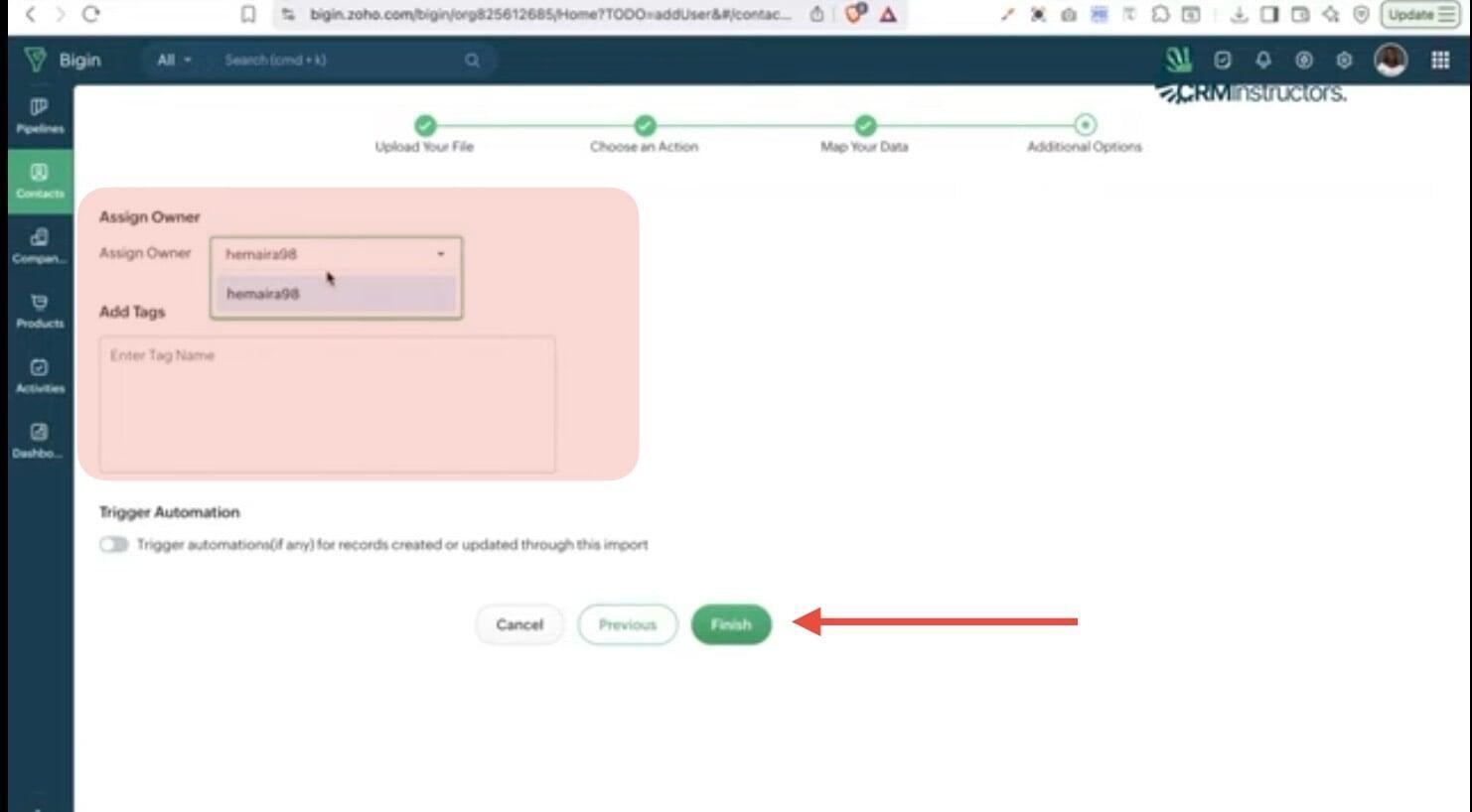
You can:
Assign each contact to a specific user so there’s clear ownership from the start. This helps avoid confusion, especially when multiple people are handling leads.
Organise contacts using tags. For instance, adding a tag like “New Lead” makes it easy to filter and track imported contacts recently.
If the tag doesn’t already exist, you can create it on the spot.
If you’re using automation, you also have the option to trigger workflows during import. This allows your contacts to automatically enter your processes without any extra manual steps.
Step 6: Complete Import and Review Summary
After you confirm everything, the import runs and your contacts start flowing into Zoho Bigin. It’s a quick process, but what matters most happens right after.
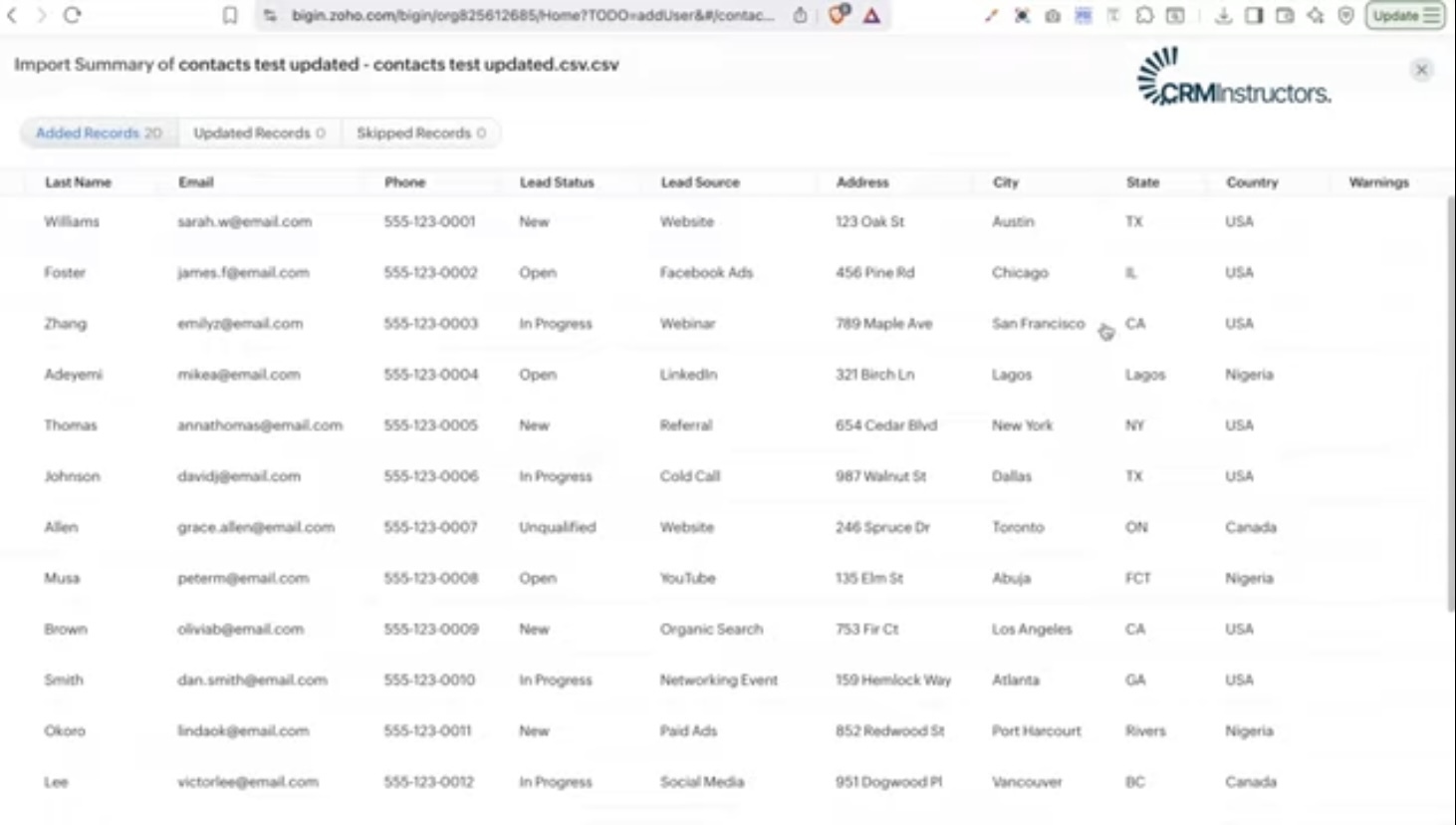
You’ll see a breakdown of the import results, showing:
What was added
What was updated
Anything that didn’t go through
This is your checkpoint before you move on.
If everything looks clean, you’re good to go. But if you notice skipped records or warnings, it’s better to fix them now rather than letting small issues turn into bigger data problems later.
There’s more than one way to handle how to upload contacts to Zoho Bigin, especially when you’re moving data from another system.
Instead of working with files, you can connect your existing CRM and bring your contacts in directly. It’s a convenient option, but one that needs careful handling to avoid importing more than you actually need.
Here’s what the process looks like and what you should keep in mind as you go through it:
Importing from Zoho CRM, HubSpot, Pipedrive, etc.
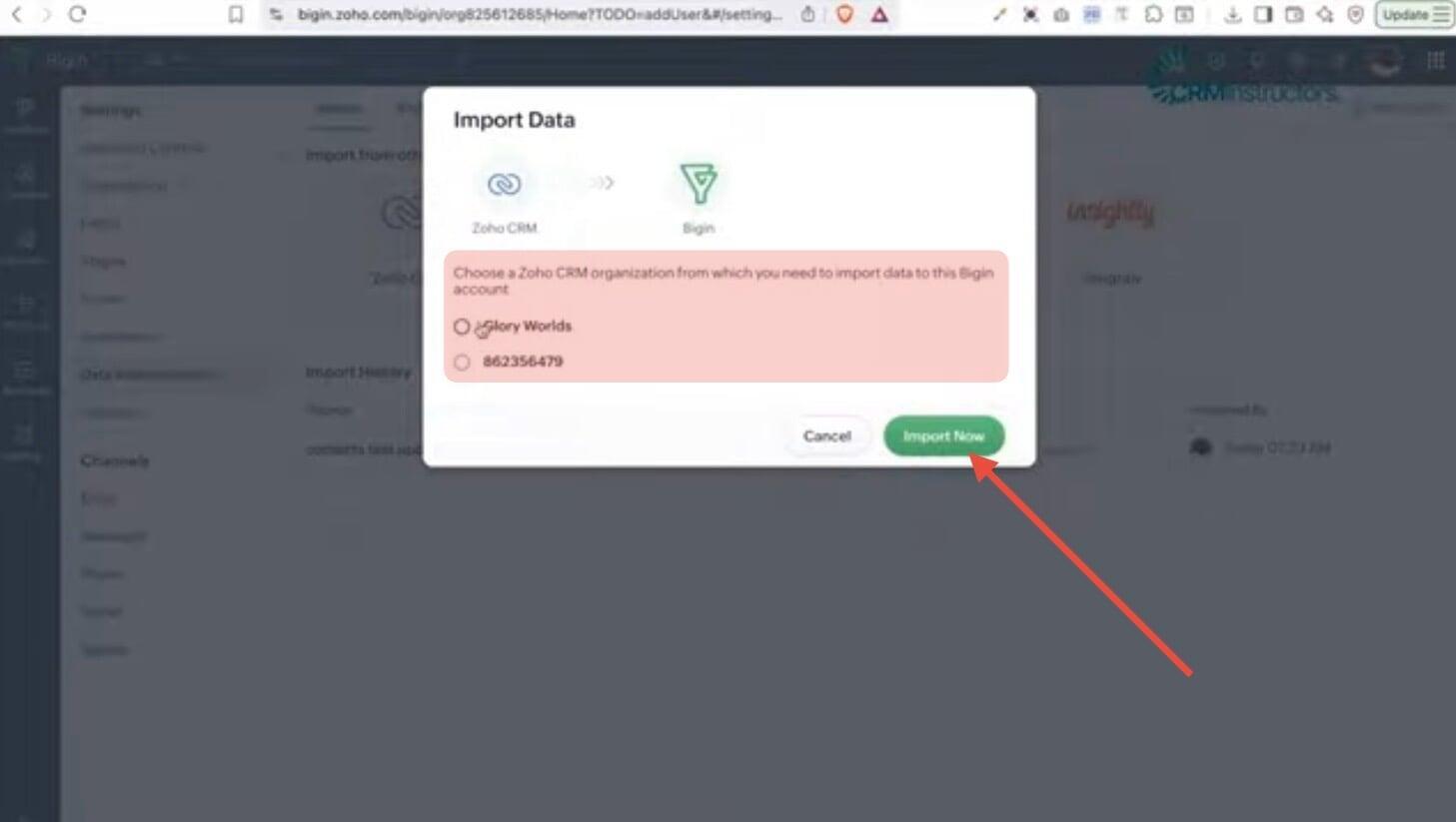
Instead of uploading a file, you can bring your contacts into Zoho Bigin directly from another CRM. This option is useful when you already have data sitting in tools like Zoho CRM, HubSpot, or Pipedrive and want to move everything over in one go.
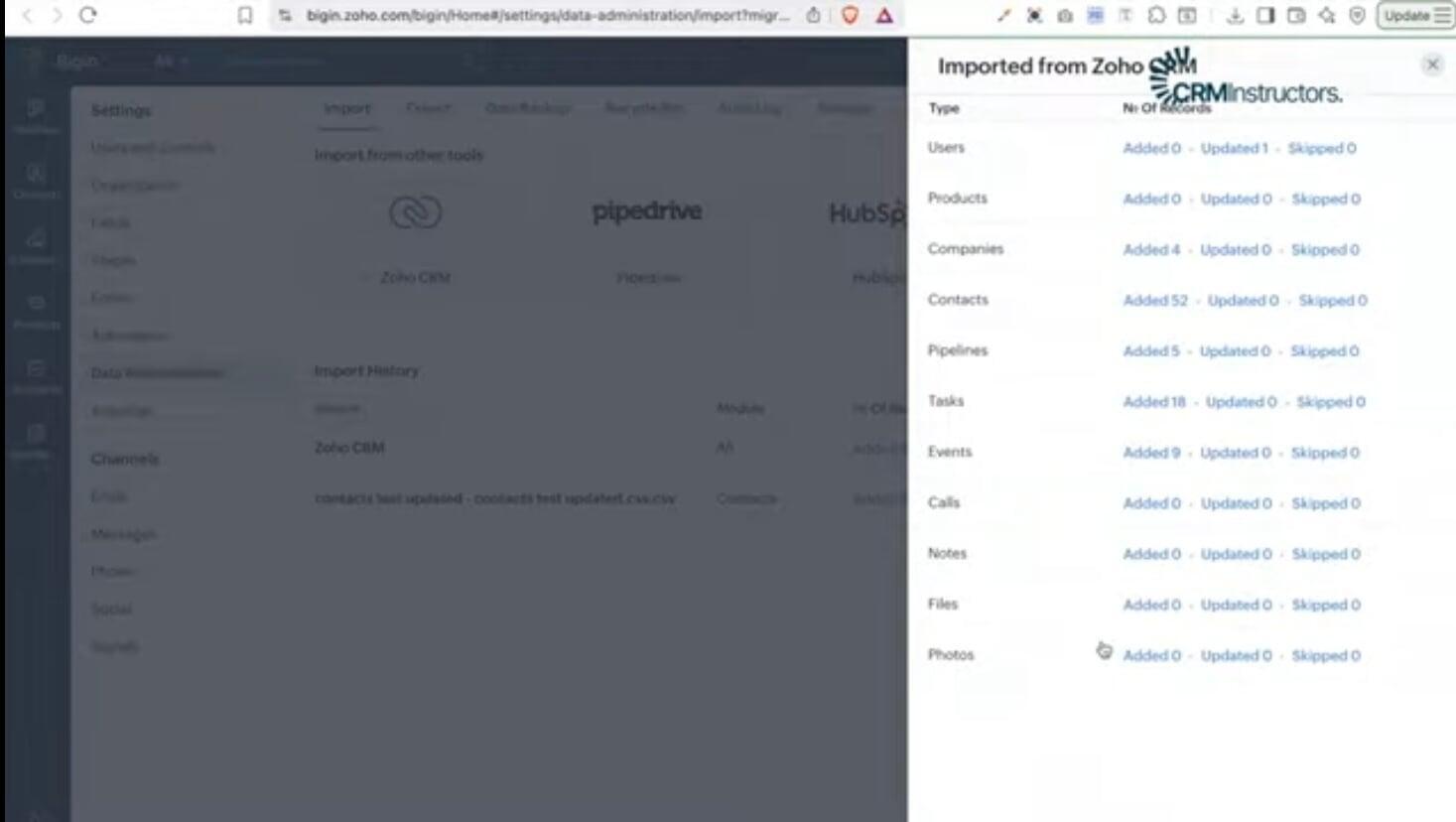
All you need to do is choose the CRM you’re importing from and select the organization or account connected to it. Once that’s done, Zoho Bigin starts pulling in your data without requiring a manual upload.
Important Warning Before Using This Method
This method doesn’t just import contacts, it brings in everything tied to your CRM.
That includes:
Contacts
Deals
Pipelines
Companies
Custom fields. It’s a full data transfer, not a selective import.
This is where things can quickly get messy. If your existing CRM isn’t well structured, you’ll end up carrying those same issues into Zoho Bigin.
When to Use vs Avoid This Option
This approach works well when you want a complete migration and need all your existing data in one place without rebuilding everything from scratch.
However, it’s not the best option if you’re trying to start fresh or clean up your data. In those cases, importing selected contacts through a file gives you more control.
There are cases where clients imported their entire CRM, including outdated pipelines and unused fields, and ended up with a cluttered system that needed cleanup before it could be used effectively.
Even when the process seems simple, a lot can go wrong during a Zoho Bigin CSV import. Most issues don’t come from the tool itself, but from small oversights that affect how your data is structured and handled.
One common mistake is importing data without setting up the required fields in advance. When fields are missing, your data either doesn’t map correctly or gets skipped entirely. Another issue is duplicate records, which often happen when there’s no clear identifier like an email to check against.
Field mapping is another area where things break. If columns are matched incorrectly, your data ends up in the wrong place, making it harder to use later. Ignoring the email field as a unique identifier also increases the chances of duplication and inconsistent records.
There’s also the risk of importing messy data from another CRM. If the original system isn’t clean, those same issues carry over and affect how your pipeline, reporting, and automation work inside Zoho Bigin.
Poor data quality costs businesses a significant percentage of productivity each year, often leading to wasted time, missed opportunities, and unreliable reporting.
Taking time to avoid these mistakes makes your import cleaner and your CRM far more effective from the start.
Based on the clients’ project CRMinstructors handled, clean imports rarely happen by chance, they come from a few simple practices done right.
Start by standardizing your picklist values before importing.
Small variations in naming can create inconsistencies that affect filtering, reporting, and automation later on. Using the email as your unique identifier also helps keep your data clean and prevents duplicate records from building up over time.
It’s also a good idea to test your import with a small batch before uploading your full file.
This gives you a chance to catch mapping issues or missing fields early. Once the import is complete, always take a moment to review the summary so you can confirm everything was added as expected.
These small steps make a big difference in how reliable and usable your data becomes inside Zoho Bigin.
Even with a solid Zoho Bigin contact import guide, there are times when things still don’t work the way they should. What starts as a simple import can turn into ongoing issues that affect how your CRM performs.
You might notice:
Automation not triggering as expected
Contacts are sitting in the wrong stages
Data that feels inconsistent across your system
In some cases, pipelines become difficult to manage because the structure doesn’t match how your business actually operates.
When these signs start to show, it’s usually an indication that something deeper needs attention beyond just the import process.
FAQs
Conclusion
Getting your setup right is what makes the difference when you import contacts in Zoho Bigin. From preparing your fields and uploading your file to mapping everything correctly and reviewing the final summary, each step plays a role in how clean and usable your data will be.
This Zoho Bigin contact import guide is designed to help you avoid the common issues that slow teams down and create extra work later. When your import is done properly, your contacts are organized, your automation works as expected, and your pipeline stays easy to manage.
Taking the time to do it right now saves you hours of cleanup and fixes down the line.
For teams that prefer a more structured approach or want a second look at how their setup is performing, CRMInstructors works closely with businesses to refine their Zoho Bigin systems and improve how everything connects behind the scenes.